How to Choose a Monitor for Programming: A Developer’s Buying Guide
Gearabout is reader-supported. When you buy through links on this page, we may earn a small commission — at no extra cost to you. Learn more.
A monitor is the piece of gear you look at more than anything else on your desk. Get it right and you barely think about it — text is crisp, your eyes last the whole day, and everything you need is visible at once. Get it wrong and you feel it by mid-afternoon: soft text, eye strain, endless scrolling and alt-tabbing.
The problem is that monitor spec sheets are written for gamers and video editors, not developers. Refresh rate, response time, HDR, color gamut — most of what’s advertised barely matters for code. This guide cuts to what does matter when you’re staring at text all day, so you can choose confidently instead of guessing.
Start here: text clarity is everything
If you remember one thing, make it this: for programming, the sharpness of text is the single most important quality of a monitor. Everything else is secondary.
Text clarity comes down to pixel density, measured in pixels per inch (PPI). The more pixels packed into each inch of screen, the smoother the edges of letters, and the less your eyes have to work to resolve small text. Low density means visibly jagged, slightly fuzzy characters — the kind of thing you don’t consciously notice but that tires your eyes over hours.
Here’s roughly where common setups land:
- 27″ 1080p → about 81 PPI. Noticeably coarse. Avoid for coding.
- 27″ 1440p → about 109 PPI. Acceptable, and budget-friendly.
- 27″ 4K → about 163 PPI. Sharp. The sweet spot.
- 32″ 4K → about 138 PPI. Still excellent, with more space.
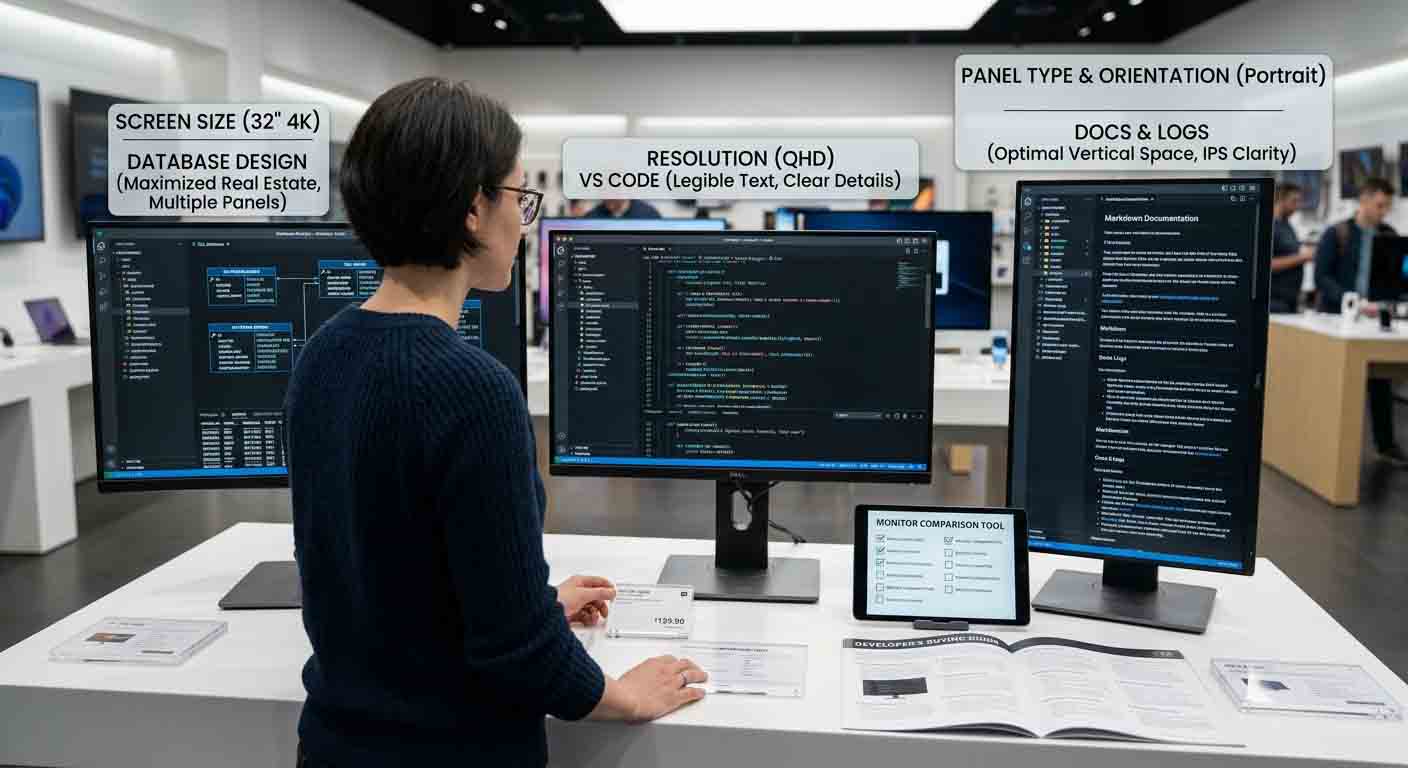
The takeaway: 4K at 27–32 inches is the target for a coding monitor. It’s dense enough that individual pixels effectively disappear, and it scales cleanly on both Windows and macOS. If your budget is tight, 27″ 1440p is the acceptable fallback — but if you can stretch to 4K, your eyes will thank you.
Resolution and size, together
Resolution and screen size only mean something in relation to each other, because together they determine pixel density.
27 inches is the most popular size for a coding monitor. At 4K, it’s razor-sharp; it fits most desks; and it works beautifully in a dual-monitor setup.
32 inches gives you more usable space for a single-screen workflow. At 4K it’s still sharp (138 PPI), though slightly less dense than 27″. Great if you want one large display instead of two screens.
34″ ultrawide (3440×1440) trades some sharpness for width. It’s excellent for placing an editor, terminal, and browser side by side with no bezel gap, but its vertical resolution is the same as a standard 1440p monitor, so text isn’t as crisp as 4K at the same distance.
Avoid: large screens at low resolution (a 32″ 1080p monitor is painfully coarse). The bigger the screen, the more resolution you need to keep density up.
Panel type: choose IPS
Monitor panels come in three types, and for coding the choice is easy:
IPS — the right choice. Consistent colors, wide viewing angles (so text doesn’t shift as you move), and good clarity. This is the standard for coding monitors.
IPS Black — a newer variant with deeper blacks and better contrast, which is easier on the eyes for dark-mode editors. A nice upgrade if your budget allows.
VA — better contrast than IPS but slower and with narrower viewing angles. Fine, not ideal.
TN — fast and cheap, but poor viewing angles and washed-out color. Avoid for coding.
Eye comfort features that actually help
Since you’ll spend all day in front of it, eye-care features are worth real attention:
Flicker-free backlighting reduces fatigue during long sessions — genuinely worthwhile.
Low blue light modes shift the color temperature to be easier on the eyes, especially in the evening.
Matte (anti-glare) coating cuts reflections in a bright room. If your desk faces or backs onto a window, this matters a lot.
Ergonomic adjustment — height, tilt, and swivel. Being able to raise the monitor to eye level protects your neck over years of use. A monitor stuck too low forces you to look down all day. If a monitor’s own stand is limited, a monitor arm solves this.
Some monitors go further — certain displays built specifically for coding include dedicated modes that tune contrast for text, which is a genuine (if niche) comfort benefit.
Connectivity: think about your cables
Modern monitors can do more than show a picture — the right ports clean up your whole desk:
USB-C with Power Delivery lets a single cable carry video, data, and laptop charging. Plug in one cable and your laptop charges while driving the display. For laptop-based developers, this is a big quality-of-life win.
Thunderbolt goes further, with enough bandwidth for daisy-chaining and high-speed peripherals.
A built-in KVM lets you control two computers (say, a work laptop and a personal desktop) with one keyboard and mouse, switching between them on the monitor. Underrated if you juggle two machines.
Standard HDMI/DisplayPort are fine if you don’t need single-cable charging — just make sure your cable and port support 4K at a usable refresh rate.
What you can safely ignore
To save money, here’s what most developers don’t need:
High refresh rate. 144Hz, 240Hz — these matter for gaming, not coding. 60Hz is fine (though 120Hz is a pleasant bonus if it comes free). Don’t pay a premium for it.
HDR. Nice for movies, irrelevant for text. Cheap “HDR” is often worse than none.
Fast response times / low input lag. A gaming concern, not a coding one.
Wide color gamut / factory calibration. Matters for photo and video professionals. Unless you also do color-critical design work, you don’t need it.
Spending your budget on pixel density and a good IPS panel beats spending it on gaming specs you’ll never use.
Single monitor or two?
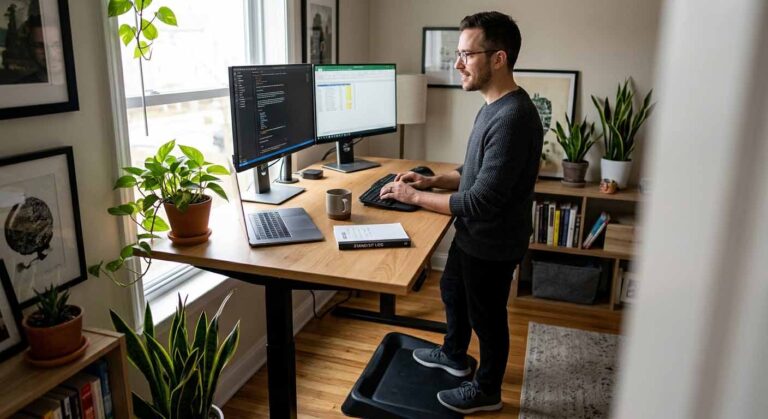
A common question with no universal answer. In short: a single large high-density monitor (32″ 4K, or a 34″ ultrawide) gives you a seamless, sharp workspace with no bezel gap and better ergonomics. Dual monitors give you separate contexts (code on one, docs on the other) and let you rotate one vertically for reading long files — often cheaper for the same total area.
Many experienced developers land on a hybrid: one sharp 27–32″ 4K primary, plus a secondary screen (sometimes rotated vertical) for documentation and logs. If you’re buying one thing now, buy one excellent monitor and add a second later.
Quick checklist before you buy
- Resolution + size: aim for 4K at 27–32″, or 1440p at 27″ on a budget
- Panel: IPS (or IPS Black)
- Pixel density: roughly 140+ PPI for crisp text
- Eye comfort: flicker-free, matte coating, height-adjustable
- Connectivity: USB-C/Thunderbolt if you use a laptop; KVM if you run two machines
- Ignore: high refresh rate, HDR, gaming specs
1440p at 27″ is acceptable and budget-friendly, but 4K at 27–32″ is noticeably sharper and easier on the eyes over long sessions. If you can afford 4K, it’s the better long-term choice; if not, 27″ 1440p is a reasonable fallback. Avoid 1080p at 27″ or larger — it’s too coarse for all-day text.
27 to 32 inches is the sweet spot. 27″ 4K is razor-sharp and works well in dual setups; 32″ 4K gives more space for a single-screen workflow. Ultrawide 34″ displays suit developers who want side-by-side windows.
Not necessarily. Curves help mainly on large ultrawide displays, where they keep the edges in comfortable view. On a standard 27″ flat monitor, a curve makes little difference for coding.
No. High refresh rates matter for gaming. For programming, prioritize text clarity, panel quality, and eye comfort. 60Hz is perfectly fine; 120Hz is a nice bonus but not worth paying much extra for.
If you code on a laptop, yes — USB-C with Power Delivery lets one cable handle video, data, and charging, which dramatically simplifies your desk. If you use a desktop, it’s less essential.
The bottom line
Choosing a programming monitor is simpler than the spec sheets make it seem. Prioritize text clarity above all: aim for 4K at 27–32 inches on a quality IPS panel, with flicker-free eye comfort and the connectivity that fits how you work. Ignore the gaming specs. Get those fundamentals right and you’ll have a monitor that keeps your eyes fresh and your code sharp for years.
→ Ready to pick one? See our guide to the best monitors for programming.